


A slow WordPress site can drive away half your visitors before your homepage even loads. Speed matters because site performance directly shapes both user satisfaction and your position in search results. If your website feels sluggish, you are not alone and there are proven strategies to turn things around. This guide breaks down simple, research-backed steps to fix persistent speed issues and keep your WordPress site running fast and smooth.
1. Fixing Slow WordPress Site Load Times
WordPress site speed can make or break your online presence. Slow loading times frustrate visitors and can significantly impact your search engine rankings.
Researchers have discovered innovative approaches to improve webpage performance. A research paper from arxiv.org discusses a system designed to identify and eliminate superfluous JavaScript code, which can dramatically reduce unnecessary code execution during page loads.
Key Performance Bottlenecks
Multiple factors contribute to slow WordPress sites:
- Unoptimized images
- Excessive plugin usage
- Poorly configured hosting environments
- Bloated theme frameworks
Quick Performance Optimization Strategies
To accelerate your WordPress site, start by implementing strategic load time reduction techniques. Begin with image optimization through tools like Lazy Load Optimize Images which can significantly reduce initial page load weight.
Consider leveraging caching plugins such as LiteSpeed Cache that help serve static versions of your pages rapidly. These tools minimize server processing time and deliver content more efficiently.
Practical Action Steps
- Audit your current site speed using free tools like Google PageSpeed Insights
- Remove unnecessary plugins that aren’t actively contributing to site functionality
- Choose lightweight WordPress themes optimized for performance
- Implement browser caching
- Use a content delivery network (CDN) for faster global content delivery
By systematically addressing these performance elements, you can transform a sluggish WordPress site into a lightning fast digital experience that keeps visitors engaged and search engines happy.
2. Resolving Plugin Conflicts and Errors
Plugin conflicts are the silent assassins of WordPress site performance. One incompatible plugin can bring your entire website to a grinding halt.
Understanding Plugin Conflicts
WordPress plugins extend functionality but can sometimes clash with each other or your theme. These conflicts often manifest as white screens, error messages or unexpected site behavior. To understand these dynamics better, learn more about plugin detection and monitoring.
Common Conflict Warning Signs
- Sudden site crashes
- White screen of death
- Unexplained error messages
- Broken page layouts
- Reduced site performance
Strategic Troubleshooting Approach
When facing plugin conflicts, adopt a systematic debugging process. Start by deactivating all plugins and reactivate them one by one to identify the problematic plugin. This methodical approach helps pinpoint the exact source of conflict.
Practical Resolution Strategies
- Update all plugins to their latest versions
- Check plugin compatibility with your WordPress version
- Review plugin support forums for known issues
- Consider alternative plugins with similar functionality
- Maintain a minimal plugin ecosystem
Preventing plugin conflicts requires ongoing maintenance and strategic plugin selection. By understanding potential interaction points and maintaining a lean plugin architecture, you can ensure a stable WordPress environment.
3. Securing Your Site Against Common Threats
WordPress sites are constant targets for malicious attacks. Understanding and implementing robust security measures can protect your digital investment from potential breaches.
According to WordPress Official Documentation, comprehensive security involves multiple strategic layers of protection. This includes everything from login page security to proper file permissions and SSL implementation.
Primary WordPress Security Vulnerabilities
- Weak login credentials
- Outdated WordPress core
- Vulnerable plugins and themes
- Unsecured hosting environments
- Lack of regular security updates
Strategic Security Hardening Techniques
To fortify your WordPress site, start by implementing fundamental security protocols. This means choosing strong unique passwords, limiting login attempts, and using two factor authentication.
Consider leveraging security plugins like Antivirus Security that provide comprehensive threat monitoring and real time protection. These tools can automatically scan for malware and block potential intrusion attempts.
Practical Security Action Steps
- Use complex passwords with mix of characters
- Enable two factor authentication
- Keep WordPress core and all plugins updated
- Implement SSL certificates
- Regularly backup your website
- Monitor login activities and suspicious behavior
Remember that WordPress security is an ongoing process. Regular maintenance and proactive monitoring are your best defenses against potential cyber threats.
4. Troubleshooting Broken Themes and Updates
WordPress themes and updates can sometimes create unexpected challenges that disrupt your entire website functionality. Understanding how to diagnose and resolve these issues quickly is crucial for maintaining a smooth online presence.
Common Theme and Update Breakdown Scenarios
Theme and update issues typically manifest through:
- Broken page layouts
- Missing design elements
- Functionality disruptions
- Complete website unavailability
- Unexpected visual changes
Strategic Diagnostic Approach
Systematic troubleshooting begins with identifying the root cause. Start by checking which recent changes potentially triggered the issue whether it was a theme update theme switch or plugin modification.
Practical Resolution Techniques
- Create a complete website backup before attempting any fixes
- Switch to a default WordPress theme temporarily
- Deactivate recently installed plugins
- Check theme and plugin compatibility
- Review error logs for specific messages
- Use staging environments for testing updates
Professional developers recommend maintaining a staging site where you can safely test updates before implementing them on your live website. This approach minimizes potential disruptions and allows for comprehensive validation of theme and plugin changes.
5. Preventing SEO Issues with Proper Setup
A poorly configured WordPress site can become an SEO nightmare invisible to search engines and frustrating for potential visitors. Understanding how to set up your website correctly from the start is crucial for online visibility.
According to Yoast, proper WordPress SEO involves strategic configuration across multiple areas. Their comprehensive guide emphasizes the importance of thoughtful setup to prevent potential ranking issues.
Critical SEO Configuration Elements
- Correct permalink structures
- Proper metadata configuration
- Mobile responsiveness
- Site speed optimization
- XML sitemap generation
- Canonical URL settings
Strategic SEO Setup Approach
Proactive configuration means addressing potential SEO challenges before they impact your site’s performance. This includes selecting SEO friendly URL structures and ensuring your content is easily discoverable by search engine crawlers.
To enhance your WordPress SEO foundation, explore 7 Key SEO Checkpoints for WordPress Success which provides a comprehensive roadmap for technical optimization.
Practical SEO Implementation Steps
- Install a reputable SEO plugin
- Configure clean readable permalinks
- Create descriptive page titles and meta descriptions
- Optimize image alt text
- Enable schema markup
- Implement internal linking strategies
Remember that SEO is an ongoing process requiring consistent attention and adaptation to changing search engine algorithms.
6. Handling Database Connection Errors
Database connection errors can transform your WordPress site from a functional platform to a frustrating blank screen in seconds. These critical interruptions prevent your website from accessing essential data and displaying content.
Common Database Connection Symptoms
- White screen of death
- Error establishing database connection message
- Partial website functionality
- Slow page loading times
- Complete website unavailability
Root Cause Investigation
Systematic troubleshooting involves identifying potential sources of database disruption. Typical culprits include corrupted configuration files incorrect database credentials and server resource limitations.
Practical Diagnostic Steps
- Verify database login credentials in wp config file
- Check database server availability
- Repair corrupted WordPress database tables
- Validate database user permissions
- Confirm hosting server resources
- Examine recent plugin or theme installations
Professional web administrators recommend creating regular database backups and maintaining a staging environment where you can safely diagnose and resolve connection issues without risking your live website. Proactive monitoring and quick response are key to minimizing potential downtime.
7. Managing Redirects and Missing Pages
Broken links and missing pages can destroy user experience and damage your website’s search engine credibility. Understanding how to manage redirects effectively prevents potential traffic loss and maintains site integrity.
Redirect and Page Error Categories
- 404 not found errors
- Broken internal links
- Outdated page URLs
- Incomplete website migrations
- Incorrect permalink structures
Strategic Redirect Management
Proactive link management involves creating intelligent redirection strategies that seamlessly guide visitors from old or broken pages to relevant content. This approach minimizes user frustration and preserves your site’s search ranking potential.
Practical Redirect Implementation Steps
- Conduct comprehensive link audits
- Implement 301 permanent redirects
- Create custom 404 error pages
- Use redirect plugins for WordPress
- Map old URLs to closest matching new content
- Set up wildcard redirects for entire URL structures
Professional website administrators recommend maintaining a clean URL ecosystem by regularly monitoring link performance and swiftly addressing any potential redirect or missing page issues. Consistent maintenance prevents long term SEO and user experience complications.
Below is a comprehensive table summarizing the strategies and solutions for optimizing WordPress site performance, plugin management, security, and more as discussed throughout the article.
| Category | Key Strategies & Steps | Expected Results |
|---|---|---|
| Site Speed Optimization | Optimize images, reduce plugins, implement caching, and CDN usage. | Faster loading times and improved search rankings. |
| Plugin Conflict Resolution | Deactivate/reactivate plugins, update, and check compatibility. | Stable site functionality and enhanced performance. |
| Security Hardening | Use strong passwords, two-factor authentication, and monitor threats. | Improved security, reduced risk of breaches. |
| Theme & Update Issues | Backup, switch themes, disable plugins, and review logs. | Maintained site functionality and reduced disruptions. |
| SEO Setup | Use SEO plugins, configure permalinks, and enable schema markup. | Better search engine visibility and user engagement. |
| Database Error Troubleshooting | Check credentials, repair databases, and verify server status. | Reduced downtime and preserved access to site data. |
| Redirect Management | Conduct audits, implement 301 redirects, and use custom 404 pages. | Minimized traffic loss and sustained SEO credibility. |
Supercharge Your WordPress Site Maintenance with WPoptic
Struggling to quickly identify plugin conflicts or diagnose slow load times can drain your energy and stall your site’s growth. The frustration from unexpected errors and persistent SEO roadblocks can leave you feeling stuck. The key to solving common WordPress issues fast is having deep insights into your site’s plugins and themes before problems escalate. Understanding your WordPress architecture empowers you to act confidently and prevent disruptions.
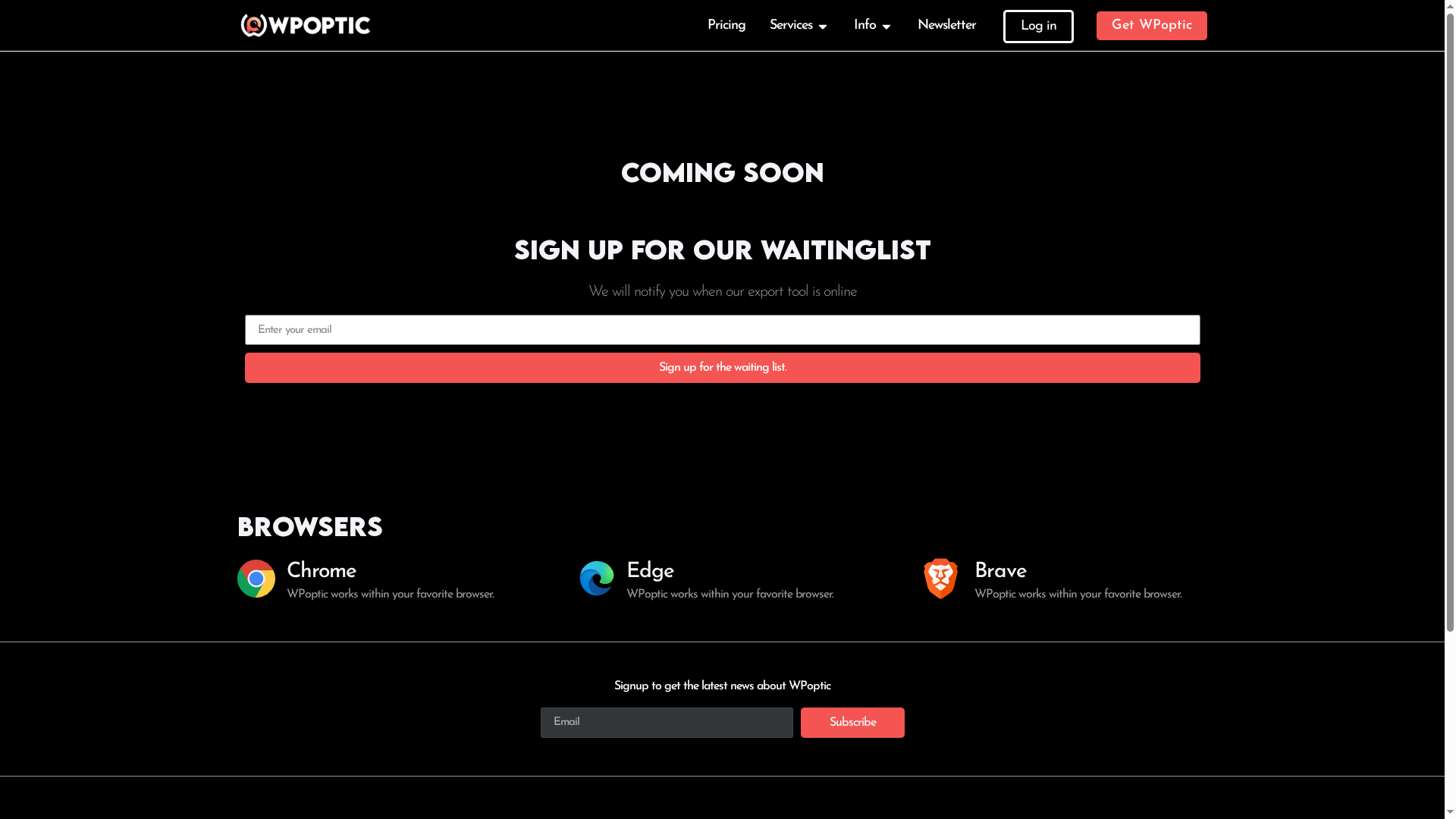
Discover how WPoptic provides comprehensive data about your WordPress setup to help you pinpoint vulnerabilities, uncover plugin incompatibilities, and optimize your site performance. Explore features like plugin popularity analytics and competitor analysis with the lead list creation tool. Don’t wait for your next site breakdown. Take control now with accurate, actionable insights from WPoptic and turn troubleshooting into a strategic advantage.
Frequently Asked Questions
How can I quickly improve slow WordPress site load times?
To improve slow load times, start by optimizing your images and using caching plugins. Implement these changes to potentially reduce load times by 50% within a week.
What should I do if I encounter plugin conflicts on my WordPress site?
If you suspect a plugin conflict, deactivate all plugins and then reactivate them one by one to identify the issue. This systematic approach will help you pinpoint the problematic plugin quickly and resolve it efficiently.
How do I enhance the security of my WordPress site?
To strengthen your site’s security, use strong passwords and enable two-factor authentication. Implement these measures immediately to better protect your site from potential breaches.
What steps can I take to fix broken themes or updates?
If experiencing issues with themes or updates, switch to a default theme temporarily and deactivate recently installed plugins. Take these actions first, as they can help quickly identify and resolve the source of the problem.
How can I manage database connection errors effectively?
To manage database connection errors, verify your database login credentials and check server availability. Performing these checks immediately can prevent downtime and restore site functionality faster.
What are effective methods for handling missing pages and redirects?
Conduct a link audit to identify broken links and implement 301 redirects to guide users to relevant content. By doing this, you can reduce user frustration and maintain your site’s SEO integrity.