


Over 40 percent of all websites run on WordPress, making plugin analysis crucial for anyone working with site optimization or security. As plugins shape a site’s performance and vulnerability, knowing how to uncover and audit them can help prevent major issues down the line. This guide shows you how to use WPoptic tools step by step, giving you clear methods to detect, analyze, and organize WordPress plugin data with confidence.
Step 1: Prepare WPoptic Tools for Site Analysis
Getting started with WPoptic requires setting up the right browser extension and understanding its core functionality for WordPress site analysis. Your first step is preparing the browser environment to efficiently detect and analyze site plugins across different WordPress websites.
Begin by installing the WPoptic Chrome extension directly from the Chrome Web Store. This lightweight tool allows instant plugin identification when you visit any WordPress site. After installation, click the WPoptic icon in your browser toolbar to activate the site scanning feature. The extension works seamlessly in the background, detecting plugin names, versions, and potential configuration details without requiring complex setup procedures.
One critical tip is ensuring your browser is updated to the latest version for optimal compatibility. While the WPoptic extension is designed to work across multiple browser versions, recent Chrome or Firefox releases provide the smoothest user experience. Before beginning your site analysis, quickly verify your browser is current and the extension is properly enabled.
With your tools prepared, you are now ready to start comprehensive WordPress site investigations. The next step will involve navigating to your target website and letting WPoptic automatically detect its plugin ecosystem.
Step 2: Initiate Website Scans for Plugin Detection
With your WPoptic browser extension prepared, you are ready to begin comprehensive website plugin detection. This step involves navigating to target WordPress sites and leveraging the powerful scanning capabilities of the WPoptic tool to uncover detailed plugin information.
To start your scan, simply visit the WordPress website you want to analyze. The WPoptic plugin detection guide recommends letting the browser extension automatically activate once the page loads. You will notice the WPoptic icon in your browser toolbar changing color or displaying a notification indicating active site scanning. Click on the icon to view an immediate breakdown of detected plugins including their names, versions, and potential configuration details.
A critical tip is to ensure you have a stable internet connection during the scanning process. Intermittent connectivity can interrupt the plugin detection mechanism and potentially provide incomplete results. Additionally, some websites might have security settings that limit external plugin scanning tools. In such cases, you may need to temporarily adjust browser settings or use alternative scanning methods.
Once the initial scan completes, you will have a comprehensive overview of the website’s plugin ecosystem. The next phase involves diving deeper into individual plugin details and understanding their potential implications for site performance and security.
Step 3: Analyze and Interpret Plugin Data Results
After completing your initial website scan, you are now ready to dive deep into the plugin data results collected by WPoptic. This crucial step involves carefully examining the detected plugins to gain comprehensive insights into the website’s technical infrastructure and potential performance characteristics.
When reviewing the plugin results, focus on key details such as plugin names, versions, and activation status. The how to analyze WordPress plugins guide recommends paying special attention to version numbers and checking whether installed plugins are current or potentially outdated. Older plugin versions might indicate security vulnerabilities or compatibility issues that could impact overall site performance. Look for patterns in plugin usage such as multiple security plugins or redundant functionality that might suggest unnecessary complexity in the site’s configuration.
A critical tip is to cross reference the detected plugins with known security databases and performance benchmarks. Some plugins might appear innocuous but could introduce significant risks or performance bottlenecks. Be particularly cautious of plugins with minimal updates, large install bases with recent security reports, or those from unknown developers. Your goal is not just identifying plugins but understanding their potential implications for website security and operational efficiency.
With your detailed plugin analysis complete, you now have a comprehensive view of the website’s technical ecosystem. The next phase will involve deeper investigation into specific plugin characteristics and potential optimization strategies.
Step 4: Export and Organize Plugin Intelligence
After conducting a comprehensive plugin analysis, the next critical phase involves systematically exporting and organizing the collected intelligence to maximize its strategic value. This step transforms raw plugin data into actionable insights that can inform website management and optimization strategies.
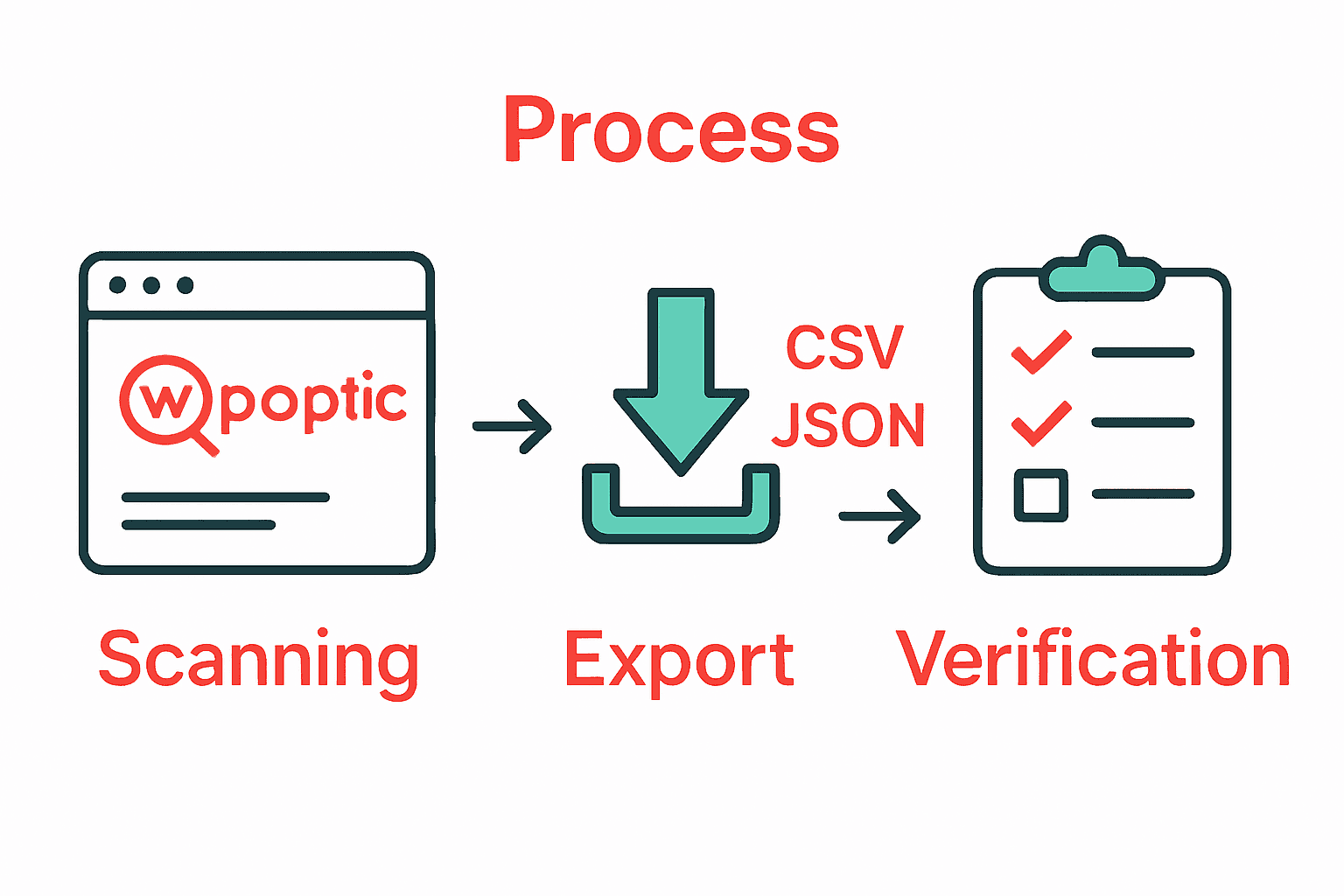
WPoptic provides multiple export options to help you streamline your plugin intelligence workflow. When preparing to export, first select the specific scan results you want to preserve. Why Use Plugin Detection Tools recommends utilizing the platform’s built in export features which typically include CSV, JSON, and spreadsheet formats. These formats enable easy integration with other research tools and allow for detailed comparative analysis across multiple website scans.
A critical organizational tip is to create a consistent naming convention for your exported files. Include key metadata such as website domain, scan date, and primary plugin categories to ensure quick retrieval and logical file management. Be sure to store exported files in a secure location with appropriate backup protocols. This approach transforms your plugin intelligence from mere data into a strategic research asset that can inform future web development and security decisions.

With your plugin data now systematically exported and organized, you are positioned to conduct deeper technological research and comparative website analysis.
The next phase will involve leveraging these insights for strategic decision making.
Step 5: Verify Accuracy and Cross-Check Findings
After exporting your plugin intelligence, the critical next step involves meticulously verifying the accuracy of your discovered data and cross checking findings through multiple validation methods. This process ensures the reliability and comprehensiveness of your WordPress site analysis.
Begin by comparing the WPoptic scan results with alternative plugin detection tools and manual website inspections. The WordPress Plugin Trends Guide suggests utilizing multiple verification techniques to confirm plugin presence and configuration. Examine the website source code, check the plugins directory, and cross reference detected plugins against the website frontend to validate WPoptic’s scanning results. Pay special attention to plugins that might be network activated or hidden from standard detection methods.
A critical verification tip is to maintain a skeptical approach and not assume complete accuracy from any single detection method. Some plugins might use cloaking techniques or be dynamically loaded in ways that can obscure their presence. Consider consulting server logs, reviewing PHP files, and examining WordPress configuration databases as supplementary verification techniques. This multilayered approach transforms your plugin intelligence from potentially incomplete data into a robust and trustworthy research asset.
With your findings thoroughly validated and cross checked, you now possess a comprehensive and reliable overview of the website plugins ecosystem. The next phase will involve interpreting these verified insights to draw meaningful conclusions about site architecture and potential optimization strategies.
Unlock Powerful WordPress Insights with WPoptic Today
Struggling to accurately detect and analyze plugins on WordPress sites can slow down your development, marketing efforts, or security assessments. The article highlights common challenges like incomplete plugin detection, outdated version risks, and the difficulty of organizing plugin intelligence. WPoptic solves these problems by providing precise plugin and theme detection tools that simplify your technical audits and competitive analysis. With features designed to deepen your understanding of any WordPress site, you gain confidence in your decisions backed by reliable data.
Take control of your WordPress site investigations now. Explore how WPoptic’s lead list creation and browser extension capabilities streamline plugin detection and analysis. Don’t wait to miss out on key insights that can improve your outreach campaigns or security strategies. Start transforming complex plugin data into clear, actionable intelligence by visiting WPoptic’s lead list page and empower your WordPress research today.
Frequently Asked Questions
How do I install the WPoptic Chrome extension for site analysis?
To install the WPoptic Chrome extension, visit the Chrome Web Store and search for WPoptic. Click the install button, and once it’s added to your browser, click the WPoptic icon to activate it for site scanning.
What should I do if my browser is not compatible with WPoptic?
If your browser is not compatible, update it to the latest version to ensure optimal compatibility with the WPoptic extension. As a best practice, check for updates at least once a month to maintain performance during scans.
How can I begin scanning a WordPress website for plugins using WPoptic?
To start scanning a WordPress website, simply navigate to the site you want to analyze and let the WPoptic extension automatically activate. After the page loads, click on the WPoptic icon to see the detected plugins, including their names and versions.
What key details should I focus on during the plugin analysis phase?
During the plugin analysis phase, pay attention to plugin names, versions, and their activation status. Ensure to check for outdated plugins that may pose security risks—prioritize updates within the next few days to enhance site security and performance.
How can I organize the exported plugin data for future reference?
To organize exported plugin data, use a consistent naming convention that includes the website domain, scan date, and plugin categories. Store the files in a secure location, and implement backup protocols to prevent data loss and facilitate easy access in the future.
What methods can I use to verify the accuracy of my WPoptic scan results?
To verify the accuracy of your WPoptic scan results, cross-check the detected plugins with other detection tools and perform manual inspections of the website’s source code. Employ multiple verification methods to ensure a thorough understanding of the site’s plugin ecosystem.
